User guide
If you have questions about using the site, open the relevant section below.
The registration process is as follows:
1. Fill in the following details in the registration form and click the "Log in" button:
- Full name
- Username
- Email or phone number
- Password
- Confirm password
- Captcha code
2.1. If you entered your email address in the "email or phone number" field:
After clicking the "Log in" button, a confirmation link will be sent to your email. Open your email and click the link to verify your account on the site. Once your email is verified, you will be logged in to the site automatically.
2.2. If you entered your phone number in the "email or phone number" field:
Before clicking the "Log in" button:
- Open the @krosvord_uz_bot Telegram bot
- Click the "Start" button
- Send your phone number in the +998xxxxxxxxx format
Then go back to the registration form, fill in the remaining fields, and click the "Log in" button.
After that, a verification code will be sent to you via the Telegram bot. Enter this code in the field on the page that opens to verify your phone number.
Once your phone number is verified, you will be logged in to the site automatically.
- From the main menu, go to "Games" → "Crosswords".
- Choose a crossword you like from the list by topic or category.
- The crossword page shows a list of across and down words along with the grid — select a cell and type the letters.
- Letters at intersections of words must match; if a letter is entered incorrectly, you can correct it.
- Once all words are filled in correctly, the result is checked and added to your stats (solved/failed crosswords).
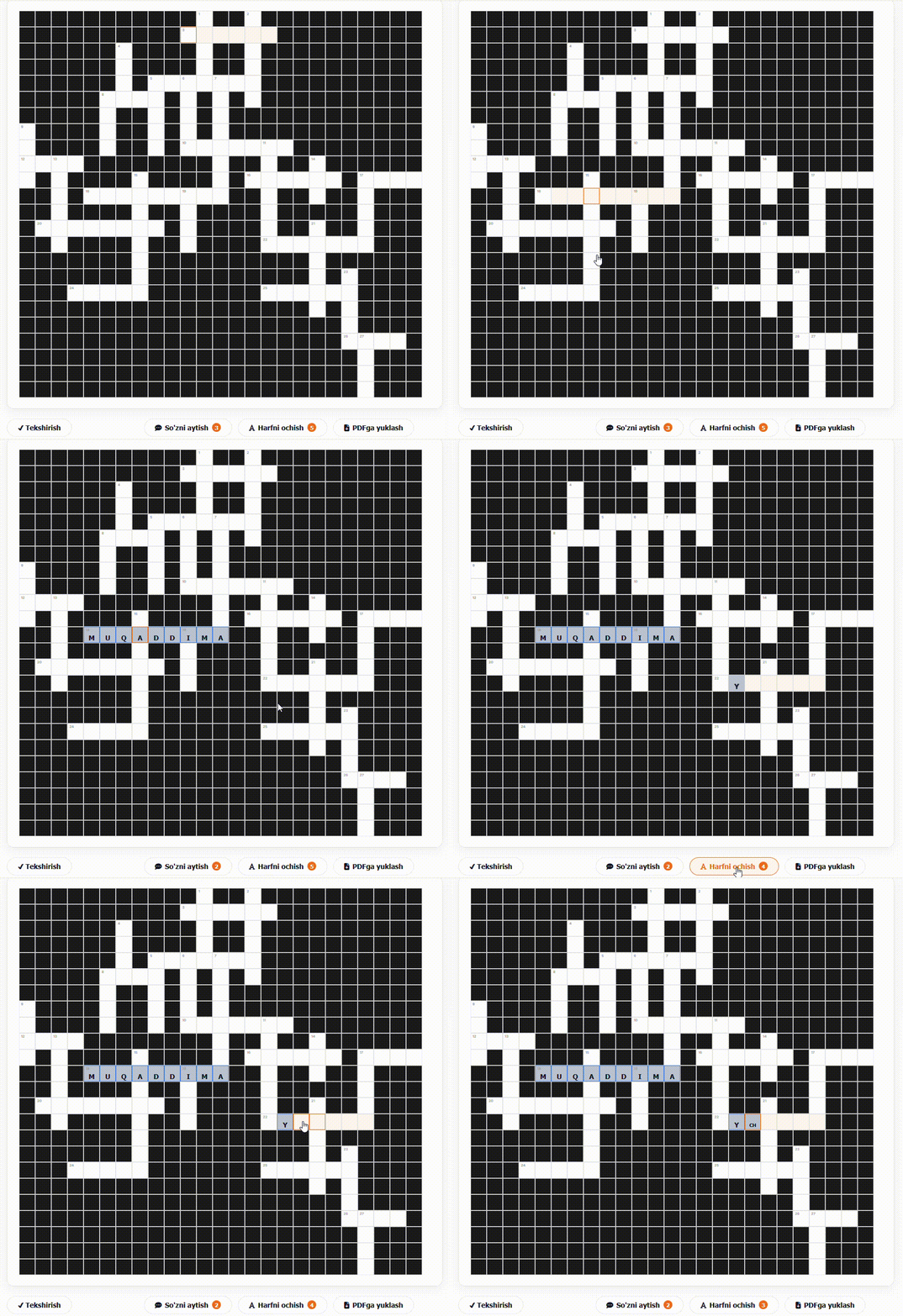
- 1. When entering letters into cells, the user does not need to move the cursor to each cell to enter. After entering a letter in one cell, the cursor automatically moves to the next. The same applies to deleting a letter.
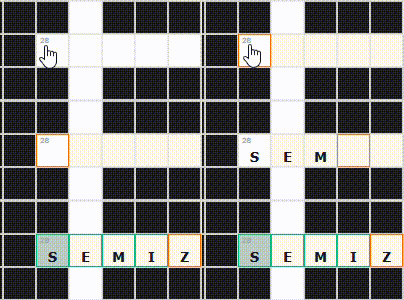
- 2. If a cell already contains a character and you want to change it, you do not need to delete it and re-enter it. Simply select the cell and type the desired letter, and the previously entered letter will be automatically deleted, and the letter you selected will be entered.
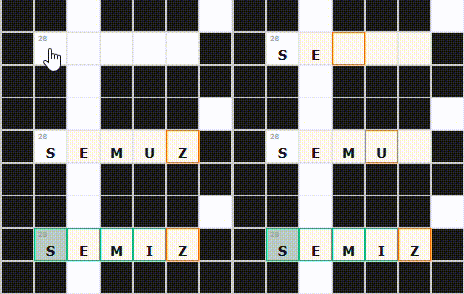
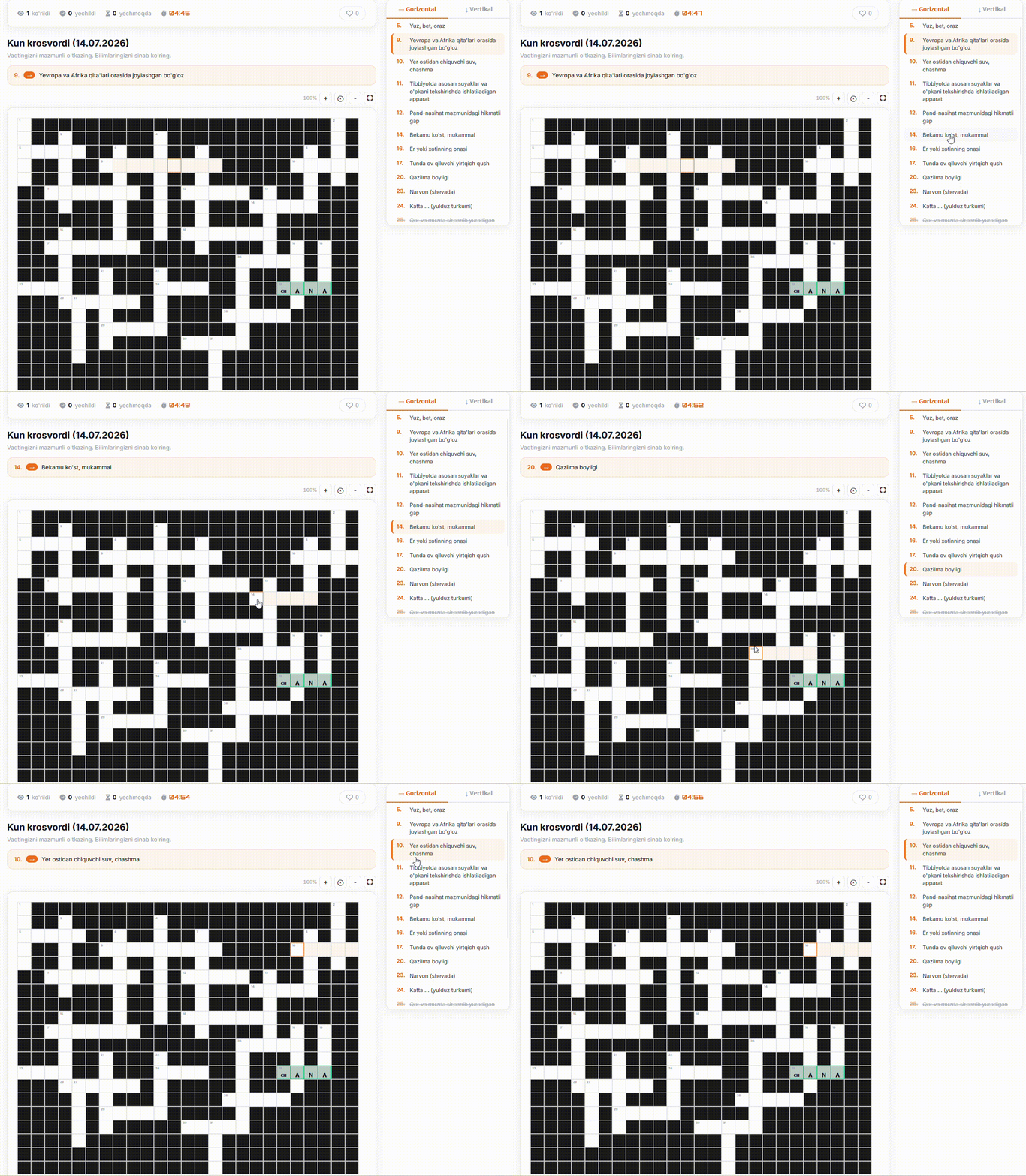
- 3. If the cells in the crossword puzzle appear small, you can zoom in and out using the + and - buttons at the top. To view the crossword puzzle in full screen mode, press the [ ] button. To return to normal mode from full screen mode, press the esc button on a computer or [ ] again on a phone.
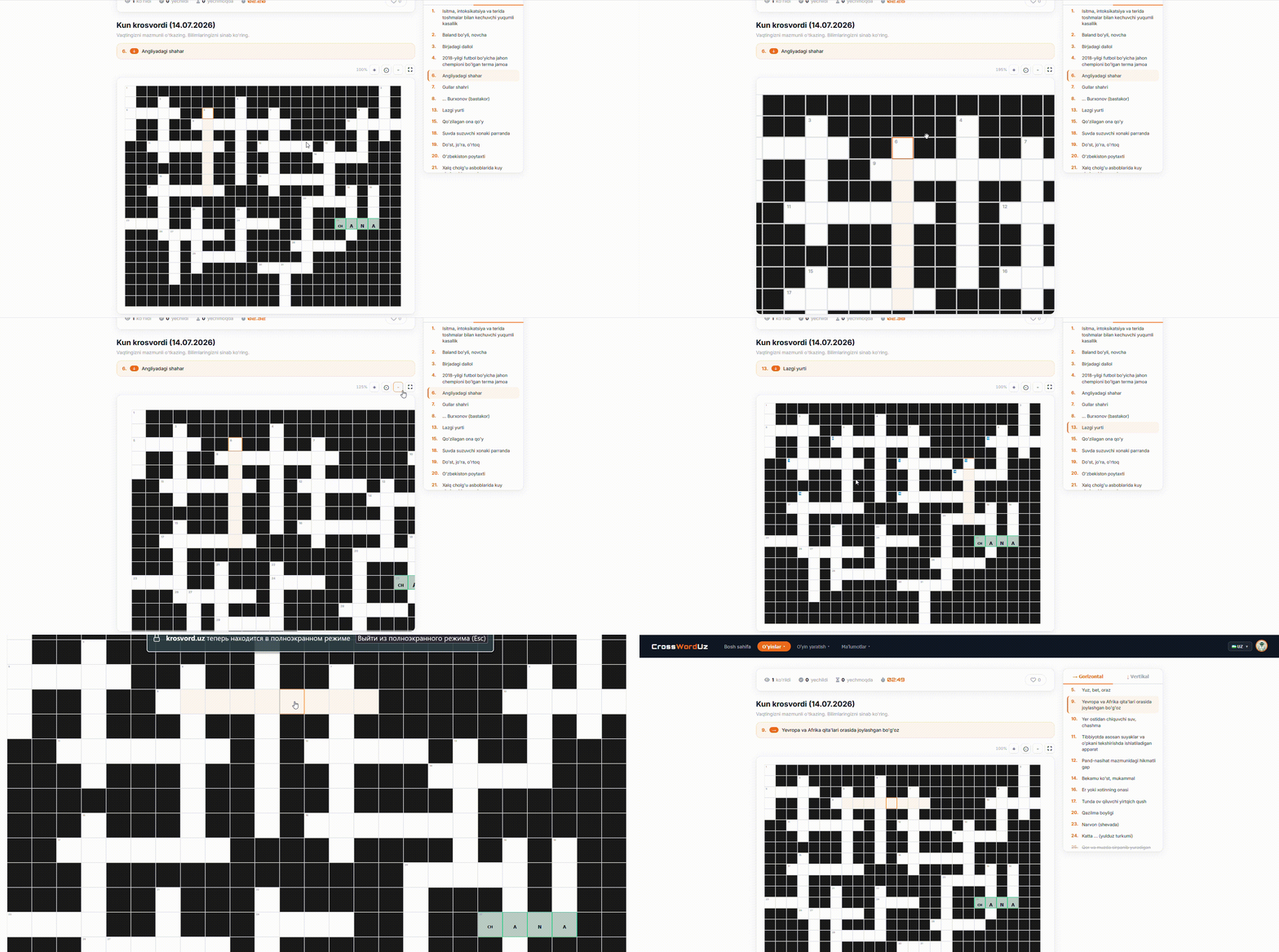
- 4. To write a word in the crossword puzzle, select the cell corresponding to that word. The question for that word will appear above the crossword puzzle, and the cells corresponding to the word will be highlighted in a different color.
- 5. If you want to select a question first and then write the answer, you can select the desired question from the list of questions on the right so that the cells corresponding to that question in the crossword puzzle are highlighted in a different color. The list of questions on the right consists of two parts: questions with words written vertically and questions with words written horizontally.
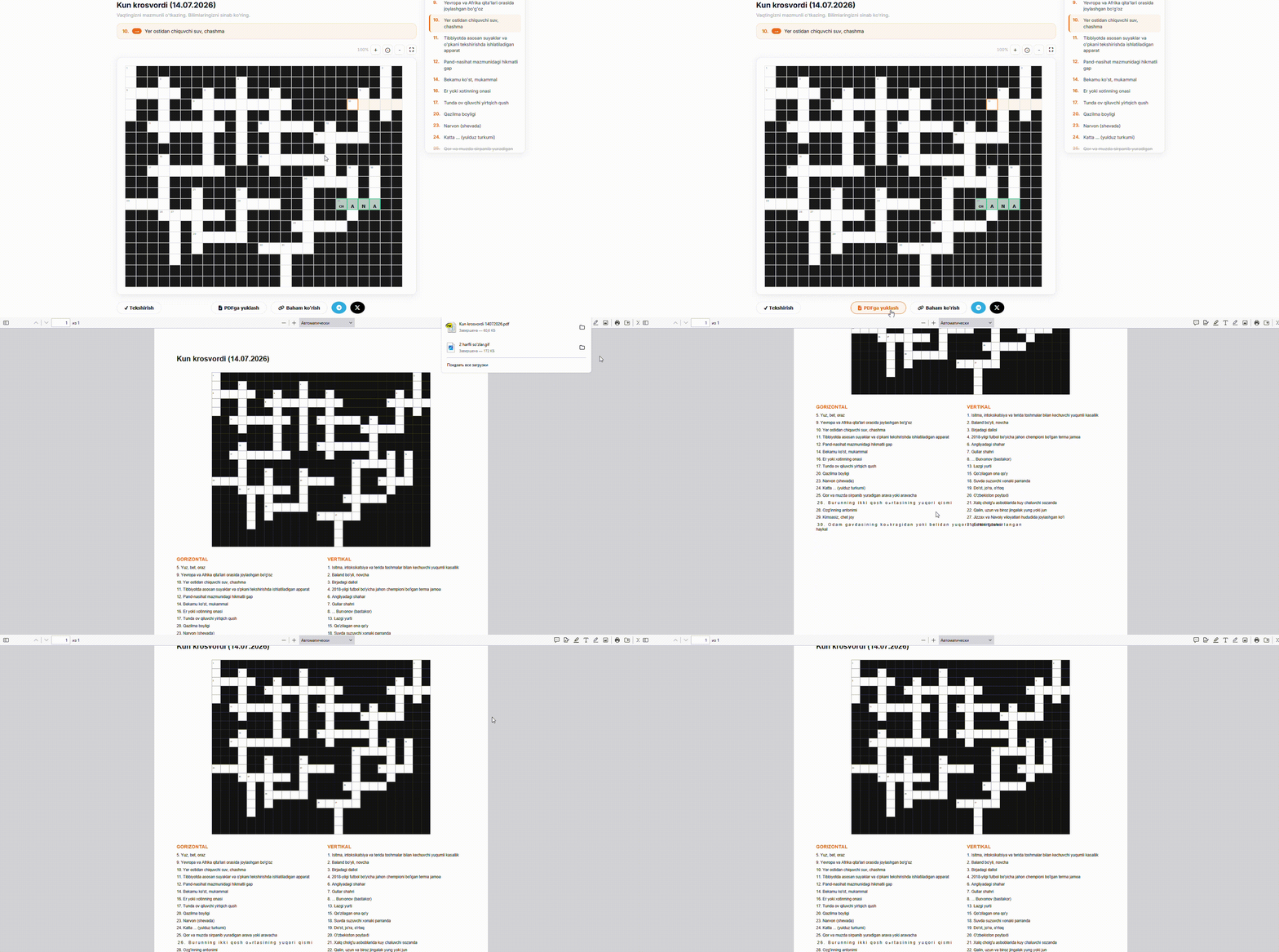
- 6. If you don't want to solve the crossword on your phone or computer, you can download it as a PDF and print it out. To do this, click the "Download PDF" button below the crossword puzzle.
- 7. If you want to send the crossword to your friends or family, you can click the "Share" button below the crossword puzzle, copy the web link to the crossword puzzle, and send it to them.
- 8. If you want to share the crossword on social media, click one of the social media buttons located below the crossword puzzle.
- 10. If you have difficulty solving the crossword, there are "Reveal Word" and "Reveal Letter" buttons to help you. To do this, first select any cell of a word in the crossword field, then click the "Reveal Word" button. At the same time, if you only want to know a letter, first select the cell in the crossword field where this letter is written, then click the "Reveal Letter" button.